
What the AI in Onflows does today
Launch offerEvery new school gets Pro free for its first 6 months.Get started free
Launch offerEvery new school gets Pro free for its first 6 months.Get started free
What the AI in Onflows does today
It answers questions beside every screen, proposes the week's timetable, and drafts the lesson and the message home. A person decides what counts. Everything on this page has shipped.
At a glance
Each one sits inside the screen where the work is done. None of them is a separate app or a chat window to learn.
Help beside every screen
Opens beside the screen without covering it, shows the guides for that screen and your role, and answers questions from those guides. What it cannot answer goes to a person.
The timetable
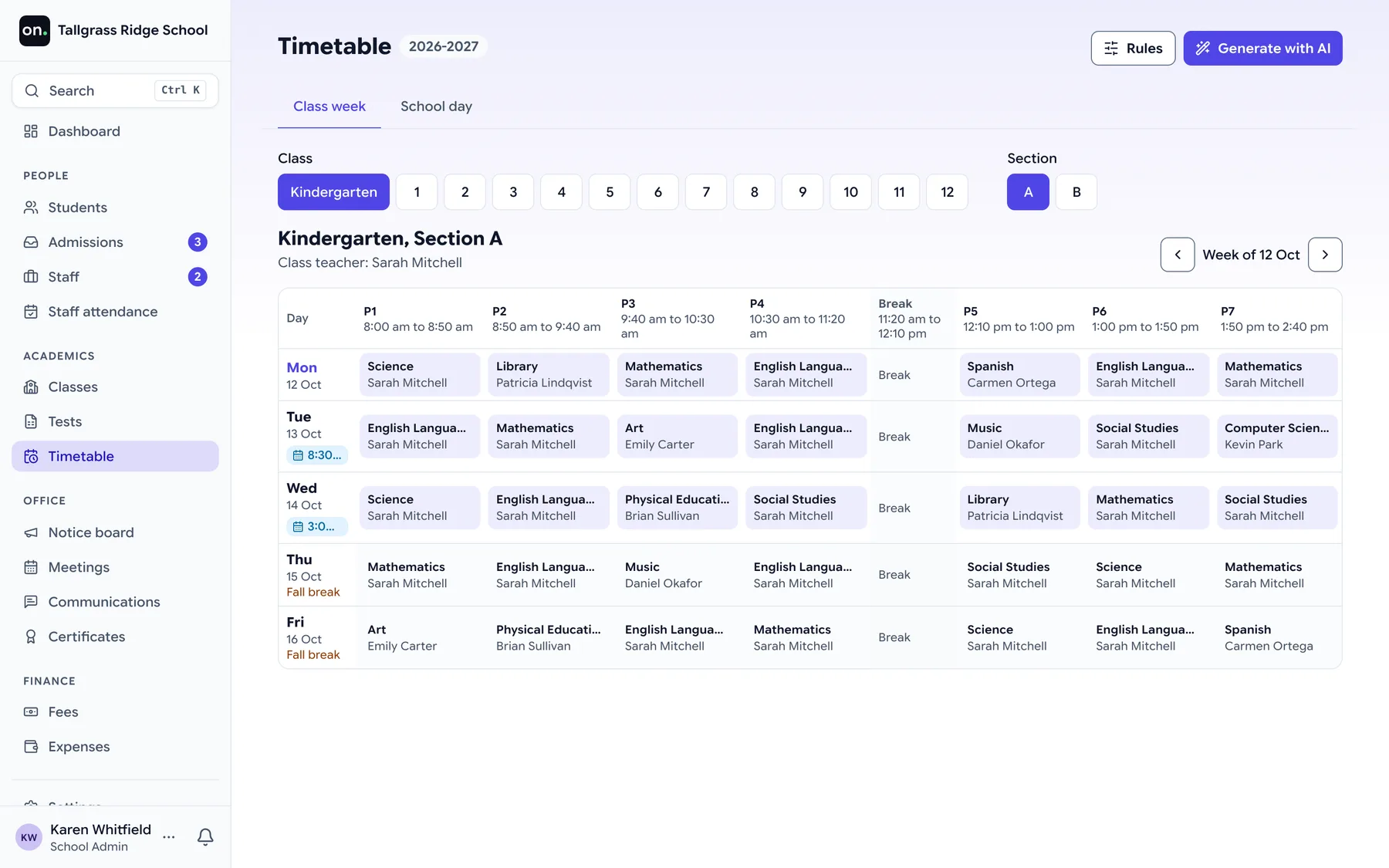
Proposes the week for every class from the rules you write, checks it with a verifier that does not guess, and applies it only when you say so.
The lesson
Drafts a period from its topic: the approach, worked examples, the board plan, an activity and the questions to ask, for the teacher to edit.
Messages to families
Drafts, shortens, rephrases or reorganises a message to families from the situation and the students chosen, for the office to read and send.
Help beside every screen
A Help button sits at the bottom right of every screen. It opens a panel beside the page, never over it, so what you typed or ticked stays where it is. On a phone it rises from the bottom. It follows you from page to page until you close it.
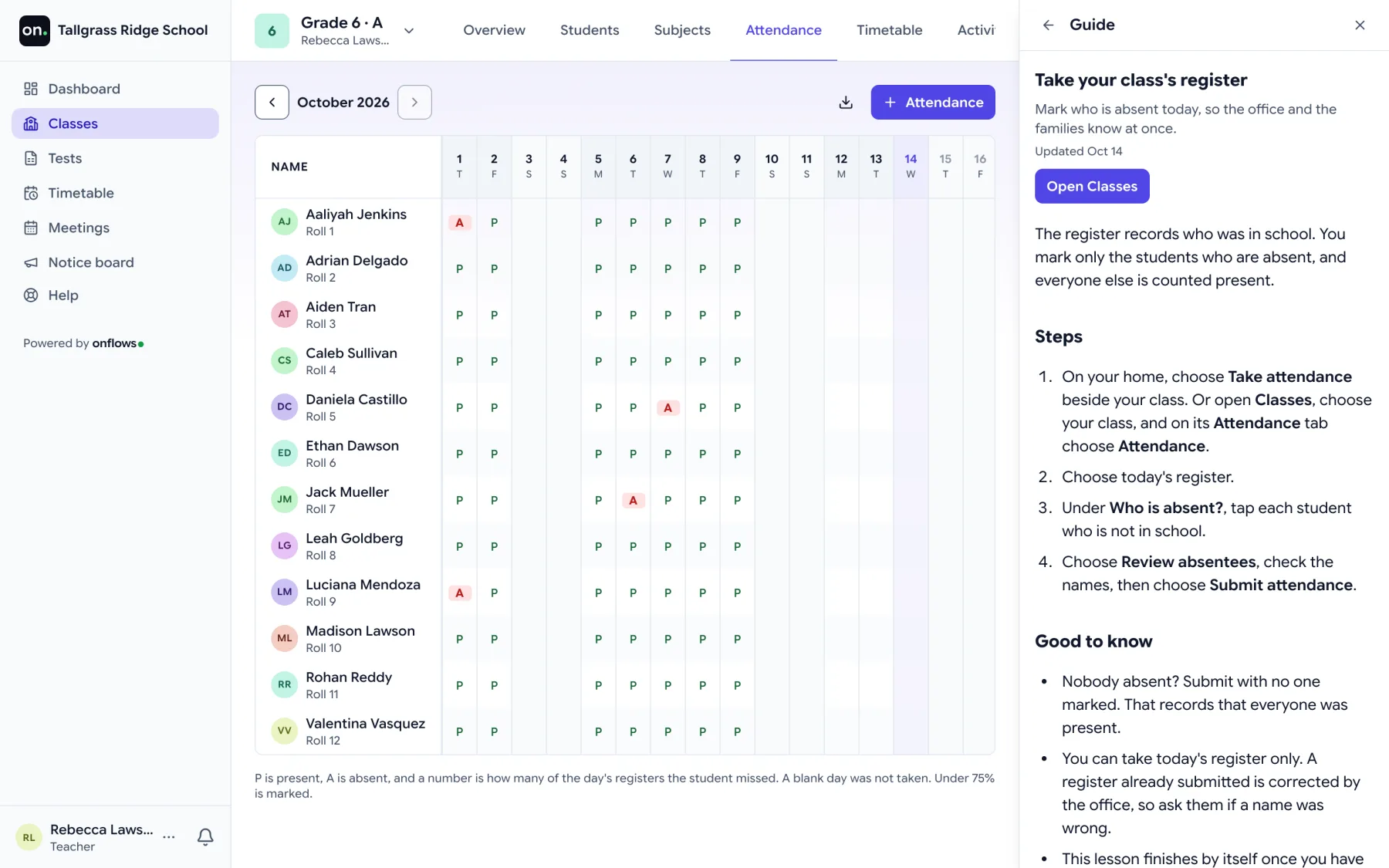
More than 130 guides, and Help shows the ones for the screen you are on. Each person sees only the guides for what they can do in their school, so a parent never reads the office's steps.
On every plan, the free one included
Type a question and the AI answers from those same guides and, for a family, from their own records. Every answer names the guide or record it came from. It does not answer anything else.
On Pro Pro
7 courses, one for each role, from the school admin to the parent. Lessons are the guides themselves, with a quick check. The office sees how far its staff have got; a family's progress stays private.
On every plan, the free one included
An example
Why it stays right
The rule
The same three steps in every job. It is how a school can use AI on its own records without handing anything over to it.
Your timetable rules, the topic of the period, the families and the situation, or a question in your own words.
From what your school gave it: your rules, your records, your guides. Never from the open web.
Applies it, edits it, sends it, or hands the question to a person. Until then nothing has changed, and the record says who decided.
Step by step
Each one is listed here only because a school can use it today. What is being built is on the roadmap, in order and without dates.
1. Help beside every screen
Opens beside the screen without covering it, shows the guides for that screen and your role, and answers questions from those guides. What it cannot answer goes to a person.
Who: Everyone: staff, parents and students
Where: The Help button at the bottom right of every screen
Answers on Pro, the guides on every plan Pro
2. The timetable
Proposes the week for every class from the rules you write, checks it with a verifier that does not guess, and applies it only when you say so.
Who: The office, or whoever builds the timetable
Where: Timetable, Generate with AI
On Pro Pro
3. The lesson
Drafts a period from its topic: the approach, worked examples, the board plan, an activity and the questions to ask, for the teacher to edit.
Who: Teachers
Where: A subject's course content, for one period
On every plan, the free one included
4. Messages to families
Drafts, shortens, rephrases or reorganises a message to families from the situation and the students chosen, for the office to read and send.
Who: The office and the principal
Where: Messages, when writing to chosen families
On every plan, the free one included
Limits
Still deciding
Four things today. Help sits beside every screen and answers questions from the school's own guides, handing what it cannot answer to a person. It proposes a week's timetable from your rules, and a verifier checks it before a person applies it. It drafts a lesson for a period, for the teacher to edit. It drafts, shortens and rephrases messages to families, for the office to send. It does not grade, it does not decide, and nothing it writes counts until a person says so.
Yes. Onflows is school management software with AI built into the screens where work is done: a help companion beside every screen that answers from the school's own guides, a timetable proposed from the school's rules, a first draft of each lesson, and drafts of messages to families. In every one of them a person decides; the AI only proposes or answers.
Lesson drafts, message drafts, the help guides and the course for each role are on every plan, the free Community plan included. Ask, the AI that answers questions in Help, and the AI timetable solver are on Pro, with attendance, the timetable, fees and tests. Pro is priced per student per year, never per teacher.
No. Marks are entered by the teacher, and the gradebook, the progress card and the parent's screen read those marks. An AI grader that proposes a score against the teacher's rubric is under consideration on the roadmap, and it will be listed on the AI page only when a school can use it.
From the school's own records and the school's own words, never from the open web. A request carries only what the person asking could see themselves, with the same permissions. What the model is instructed is written in a prompt catalog the platform owner reads and changes.
Yes. Every screen has a Help button that opens a panel beside the page, not over it, with the guides for that screen and that person's role. On Pro, they can also ask a question in their own words: the AI answers from the guides they are allowed to read, names the guide it used, and hands anything it cannot answer to a person as a ticket. Parents and students get the same help for their own screens.
No. It answers only questions about Onflows and your school, only from your school's guides and, for a family, their own records. Every answer names its source, an answer without one is never shown, and anything else is refused with an offer to ask a person. It never searches the open web.
Each role has a short course in Help, from the school admin and the teacher to the accountant and the parent. The lessons are the same guides Help shows beside each screen, some with a quick check, and some finish by themselves when the person does the task for real. The office can see how far its staff have got; a family's progress stays private. The guides and courses are on every plan.
They are checked on every change. Each guide quotes the buttons and screens it names, and a check fails the build when one no longer exists, so a renamed button and its guide change together. Who sees a guide follows the school's own permissions, so giving someone a new duty shows them its guides with nothing else to set up.
On every plan: lesson drafts, message drafts and the help guides and courses. On Pro: Ask in Help and the timetable solver.