
Reducing paperwork
A Step-by-Step Blueprint to Transition Away from Physical Filing Cabinets
Going paperless fails when a school tries to scan everything at once. Here is a six-step blueprint that starts with the records you touch every day, keeps the cabinet locked as a backup, and finishes with an office that finds any document in seconds.
The Onflows team3 min read
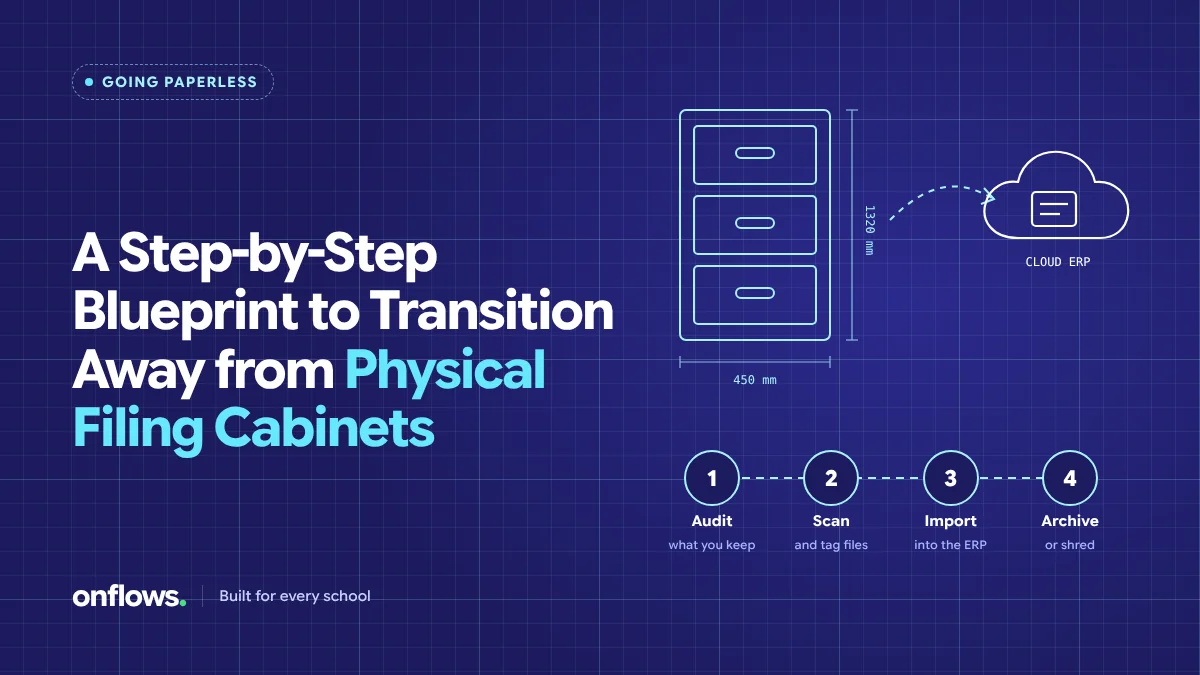
Every school office has the cabinet. Four drawers, labelled by year, holding admission forms, transfer certificates, fee receipts and letters going back further than anyone working there. When a former student asks for a duplicate certificate, someone spends an afternoon in it.
Going paperless is the obvious fix, and the reason most attempts fail is also obvious: someone decides to scan the whole cabinet first. Three weeks later the scanner is broken, half a drawer is done, and the office is still on paper.
Here is a blueprint that works because it starts with what you use, not with what you have.
Step 1: Decide what "paperless" means for you
Paperless does not mean no paper ever. It means:
- New records are created digitally. Admissions, attendance, fees, marks, certificates.
- Active records are findable digitally. The current students' documents.
- Old records are safe and indexed. Closed years can stay on paper, as long as you can find them.
Write down which records fall into which group before buying anything.
Step 2: Move the roll first
Everything reads the student record. Import your current students from your existing spreadsheet or old system, with a dry run that shows duplicates, bad dates and missing guardians before anything is written. In Onflows, the bulk import does exactly this; it is on the free plan. We cover the wider migration in safely moving decades of student records into a cloud ERP.
Step 3: Stop creating new paper
Before scanning anything old, turn off the paper tap:
- Admissions: a public application form, filled by the family. See turning website inquiries into enrolled students without paperwork.
- Attendance: marked by the teacher on a phone or laptop.
- Fee receipts: generated and numbered by the system.
- Circulars: a notice board with read receipts instead of a printed slip.
- Certificates: printed from the record, with a serial number.
This step alone removes most of the new paper in a term.
Step 4: Scan the active files, by student
Now scan, but only the files for students currently enrolled, and store each document against the student it belongs to. A birth certificate in a folder called "Scans 2026" is not paperless; it is a digital cabinet. A birth certificate on Aarav Mehta's record is.
A versioned document vault that never hard-deletes means a corrected document keeps its history.
Step 5: Archive closed years properly
For students who have left, you do not need to scan everything. You need:
- A record that the student existed, with admission and leaving dates.
- The transfer certificate issued.
- The final report card.
Onflows keeps closed academic years readable in its archives, so a former student's record does not vanish when the year ends. The old paper files can go into labelled boxes with an index.
Step 6: Lock the cabinet, do not burn it
Keep the cabinet for one full academic year as a backup. If nobody opens it in that year, the digital system is working. Some records have legal retention periods; check yours before destroying anything.
How long it takes
| Step | Typical time |
|---|---|
| Decide scope | One meeting |
| Import the roll | One to three days |
| Stop new paper | One term |
| Scan active files | Two to six weeks, spread out |
| Archive closed years | Ongoing |
What it saves
The obvious saving is stationery; we put numbers on it in the true cost of paperwork. The bigger saving is time: the afternoon in the cabinet becomes a search box.
Frequently asked questions
Do we need a document scanner?
A phone scanning app is enough for most schools. A sheet-fed scanner helps if you have thousands of pages.
Is a scanned certificate legally valid?
A scan is a copy. Original certificates issued by your school can be reprinted from the record with their serial number; external originals (like a birth certificate) should be returned to the family once scanned.
Is paperless safe?
Safer than a cabinet, if access is by role and every view is logged. A cabinet has no audit trail.
Start with a free school on Onflows, or see every feature first.
Topics: Reducing paperwork, School management software, Online school management system, Data migration, School administration