
School management system software
Restricting Sensitive Student Financial and Medical Records from Unauthorized Staff
In many schools, one admin login opens everything: fee concessions, health notes, family circumstances. Here is how role-based access works, how to design roles for a school, and the mistakes that leave sensitive records exposed.
The Onflows team2 min read
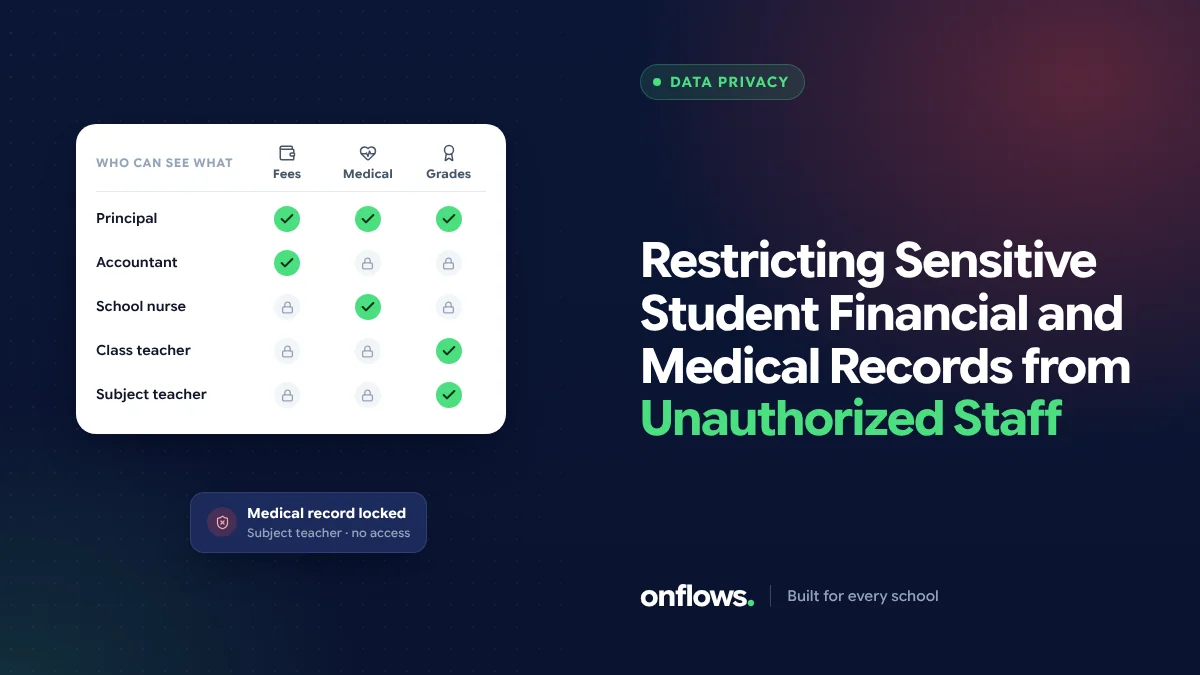
A receptionist at the front desk needs to check whether a student is in school today. A teacher needs a student's marks. The accountant needs the fee ledger. The nurse needs the allergy list.
None of them needs all of it. Yet in many schools, every staff member uses the same admin login, or a login that opens every screen. That means the receptionist can see which families receive financial aid, and the substitute teacher can read a child's medical history.
Why it matters
- Privacy. Financial aid, health conditions and family situations are among the most sensitive things a school knows.
- Law. Data protection laws require access limited to need. See complying with data protection law.
- Trust. A family that learns its concession was gossip in the staff room will not trust the school again.
- Mistakes. Fewer people with edit rights means fewer accidental changes.
How role-based access works
Instead of giving each person a list of screens, you define roles, and give each role a set of permissions. A person gets a role. When the role changes, everyone in it changes at once.
Each permission answers two questions:
- What area? Students, attendance, marks, fees, documents, staff, settings.
- What level? None, view, edit, or approve.
And some permissions are scoped:
- To their own classes or subjects, for teachers.
- To their own children, for parents.
- To themselves, for students.
A starting set of roles
| Role | Sees | Edits |
|---|---|---|
| Principal | Everything | Most things, approvals |
| Office administrator | Students, admissions, documents | Students, admissions |
| Accountant | Fees, expenses | Fees, expenses |
| Class teacher | Their class: students, attendance, marks | Attendance, marks for their subjects |
| Subject teacher | Their subject's students and marks | Marks for their subject |
| Front desk | Student names, classes, guardian contacts | Nothing |
| Parent | Their own children | Nothing |
Adjust to your school. Start strict and grant more when someone needs it; the reverse rarely happens.
Common mistakes
- Sharing one admin password. Nobody can tell who did what.
- Never removing access when staff leave or change roles.
- Hiding a screen but not the data. If the menu hides the fee page but the data is still reachable another way, it is not protected. Access must be enforced by the system, not by the menu.
- No audit trail, so a leak cannot be traced.
Where Onflows fits
In Onflows, permissions are set per role, with a grant for each area of the record, and teachers are scoped to the subjects they teach. Parents see only their own children, enforced in the service rather than the screen. Every change is recorded in the audit trail. Read more in our security section.
Frequently asked questions
How many roles should a school have?
As few as possible. Six to ten covers most schools.
Should the principal see everything?
Usually, but even the principal's views should be logged.
What about temporary access?
Grant it with an end date, for example to an auditor, and check that it ended.
See permissions and the audit trail in Onflows, or create your school.
Topics: School management system software, Data security, Permissions, Privacy, School management system features